
How to Connect an Epson Receipt Printer to Computer: The Definitive Guide

Reggie Jacobs
Founder of Receipt Maker & Document Management Expert
Struggling with your Epson receipt printer setup? This step-by-step guide covers USB and Ethernet connections, the APD driver trick, and fixes for the three most common errors.
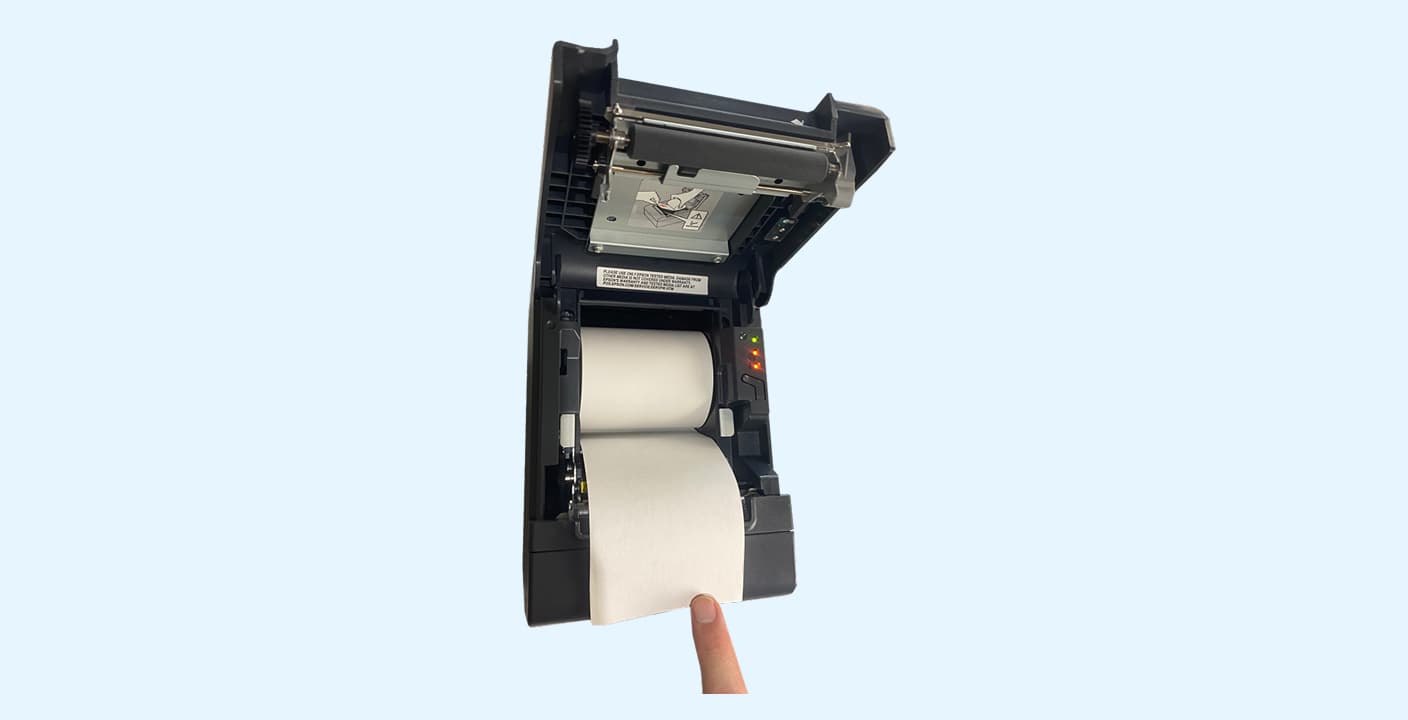
Setup in 4 Steps
The correct setup sequence for Epson receipt printers:
- Step 1: Identify your interface - USB (Type-B), Ethernet (RJ45), or Serial (RS-232)
- Step 2: Download the Epson Advanced Printer Driver (APD) v5.xx+ from the official Epson website (skip the CD)
- Step 3: Install the driver BEFORE plugging in the USB cable (the Ghost Port Trap)
- Step 4: Configure the connection - USB is plug-and-play after driver install; Ethernet requires IP configuration via EpsonNet Config
Common fix: If you get garbage text, you installed the wrong model driver. Delete and reinstall the correct APD.
I have seen it happen a hundred times. You buy the industry-standard Epson TM-T88V (or the newer T88VI), unbox it with excitement, and plug it in. You expect it to just work.
But it doesn't.
Instead of printing a crisp receipt, it sits there, blinking an angry orange LED at you. The computer doesn't see it, or worse - Windows sees it as an Unspecified Device.
Connecting a receipt printer isn't like connecting a regular office inkjet. It relies on specific communication ports, legacy drivers, and sometimes complex IP configurations. But getting this right is arguably the most critical step in your Point of Sale (POS) setup.
Here is the no-fluff guide to getting your Epson receipt printer connected, recognized, and printing.
Phase 1: The Preparation (Don't Skip This)
Before you plug anything into your computer, you need to identify exactly what hardware you are dealing with. Epson printers are modular. Two identical-looking TM-T88Vs might have completely different interfaces on the back.
Check your interface:
Look at the back of the printer. What ports do you see?
- USB: A square-ish port (Type-B), similar to a standard printer cable.
- Ethernet (LAN): Look for the RJ45 jack (looks like a wide phone jack).
- Serial (RS-232): A wide, trapezoidal port with pins. (Rare nowadays, avoid if possible).
Get the Driver:
Do not use the CD that came in the box. It is likely outdated. You need the Epson Advanced Printer Driver (APD).
- Go to the Epson Expert or official Epson Support site.
- Search for your specific model (e.g., TM-T88V).
- Download the APD (Advanced Printer Driver) v5.xx or higher.
- Note: Do not install it yet. Just have the file ready.
Phase 2: Connecting via USB (The Simple Method)
If you are using a single terminal and the printer is sitting right next to it, USB is your best bet. It is stable and fast.
The Ghost Port Trap:
Most people plug the USB cable in before installing the driver. Windows then tries to install a generic driver, fails, and creates a ghost entry that blocks the real installation.
The Correct Sequence:
- Power OFF the printer.
- Connect the USB cable to the printer and the computer.
- Run the APD Installer (the file you downloaded in Phase 1).
- Select Standard Install.
- When prompted to Add a Printer, select your model (e.g., TM-T88V).
- Crucial Step: Under Port Type, select USB.
- Turn the printer ON only when the installer tells you to, or after you have selected the port.
If done correctly, the installer will detect the printer, assign it to a virtual USB port (like ESDPRT001), and print a test slip.
Phase 3: Connecting via Ethernet/LAN (The Pro Method)
This is where 90% of support tickets come from. Ethernet is better because multiple computers can print to the same printer, but it requires IP configuration.
The printer comes with a default static IP (usually 192.168.192.168) or is set to DHCP. If your network uses a different range (like 192.168.1.x), the printer will be invisible to your computer.
Step 1: Get the Current IP Address
You need to know what the printer thinks its IP address is.
- Turn the printer OFF.
- Hold down the Feed button.
- While holding Feed, turn the printer ON.
- Keep holding Feed for about 5 seconds until it starts printing.
It will spit out a long strip of technical info. Look for the section labeled Current IP Address.
Step 2: Configure the PC to Match
If the printer's IP is 192.168.192.168 but your computer is 192.168.1.50, they can't talk. You briefly need to change your computer's IP to match the printer's range to configure it.
- Go to Windows Network Adapter settings.
- Change your PC's IPv4 address to static: 192.168.192.200.
- Open a browser and type the printer's IP (192.168.192.168) into the address bar.
- EpsonNet Config: You should see the Epson configuration page. Login (default is often user: epson, pass: epson or serial number).
- Navigate to TCP/IP settings.
- Change the printer's IP to a valid static IP on your actual network (e.g., 192.168.1.250).
- Save and Reset the printer.
- Revert your PC network settings back to automatic (DHCP).
Step 3: Install the Driver
Now that the printer is on the correct network:
- Run the APD Installer.
- Select Ethernet as the Port Type.
- The installer should scan the network and find the printer at the new IP address.
Comparison: USB vs. Ethernet vs. Bluetooth
| Feature | USB | Ethernet (LAN) | Bluetooth |
|---|---|---|---|
| Reliability | High | High | Medium |
| Setup Difficulty | Low | High | Medium |
| Distance | Short (< 6ft) | Long (300ft+) | Medium (< 30ft) |
| Multi-PC Access | No | Yes | Mobile Devices Only |
| Best For | Single Register | Kitchen Printers | Food Trucks/Mobile |
Troubleshooting: When It Still Won't Print
Even if you follow the steps, things go wrong. Here are the specific fixes for the most common errors.
1. The Unspecified Device Error
If you see the printer in Devices and Printers under Unspecified, you are missing the specific driver.
- Fix: Right-click the unspecified device -> Properties -> Hardware. Note the model. Run the APD installer again and force it to update the driver for that USB port.
2. Printer Prints Garbage Text
If the printer spits out 10 feet of random symbols (@!#&^%), you have a driver mismatch.
- Fix: You are likely using a generic Generic / Text Only driver or the wrong model driver (e.g., T88IV driver for a T88V printer). Delete the printer entirely and reinstall the correct APD.
3. Cash Drawer Won't Open
The cash drawer connects to the printer, not the computer.
- Fix: Go to Printer Properties -> Device Settings (or Peripherals). Look for the Cash Drawer tab. Set it to Open at Start of Document. If it still fails, check that you are using the correct cable (it looks like a phone cable, but it is wired differently).
Summary
Connecting an Epson printer is less about plug-and-play and more about configure-and-play.
- Identify your port (USB or Ethernet).
- Download the APD (Advanced Printer Driver).
- Configure the IP (if using Ethernet) before installing the driver.
- Test using the driver's built-in Print Test Page function, not just your POS software.
Once your hardware is reliable, you can focus on the operational side - like using an online receipt maker for business tracking and tax compliance - without worrying if the hardware will fail during the lunch rush.
FAQ
Q: Can I use a generic USB cable?
A: Yes, any standard USB A-to-B cable (printer cable) works fine.
Q: My POS software can't find the printer.
A: Ensure the printer is named simply in Windows (e.g., ReceiptPrinter). Some older POS software cannot handle long printer names or network paths.
Q: How do I factory reset the network settings?
A: On most Epson models, hold the small Push button on the interface card (back of the printer) for 3+ seconds while the printer is on. This resets the IP to default.
Related Articles
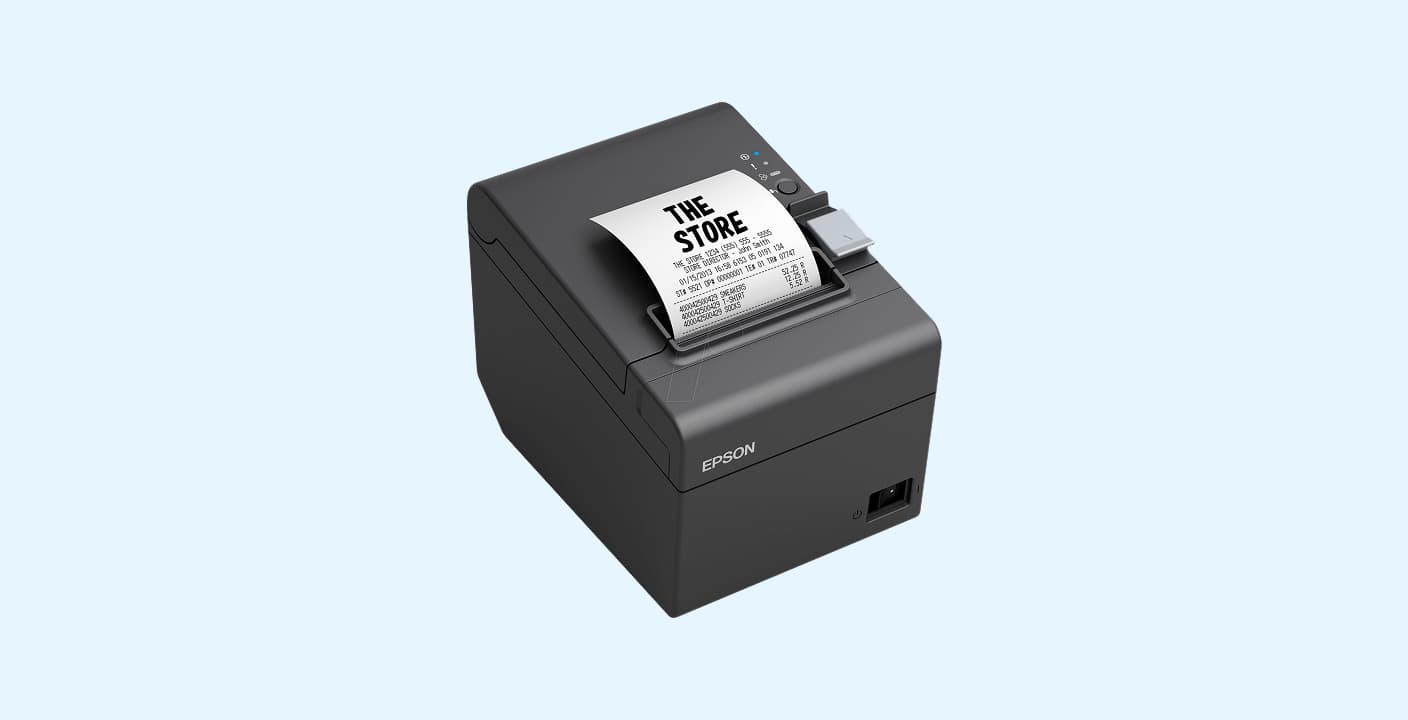
How to Print a Receipt: A Step-by-Step Guide for Businesses
Choosing the right receipt printer and paper can save you thousands annually. Here's exactly what hardware you need and how to set it up correctly.
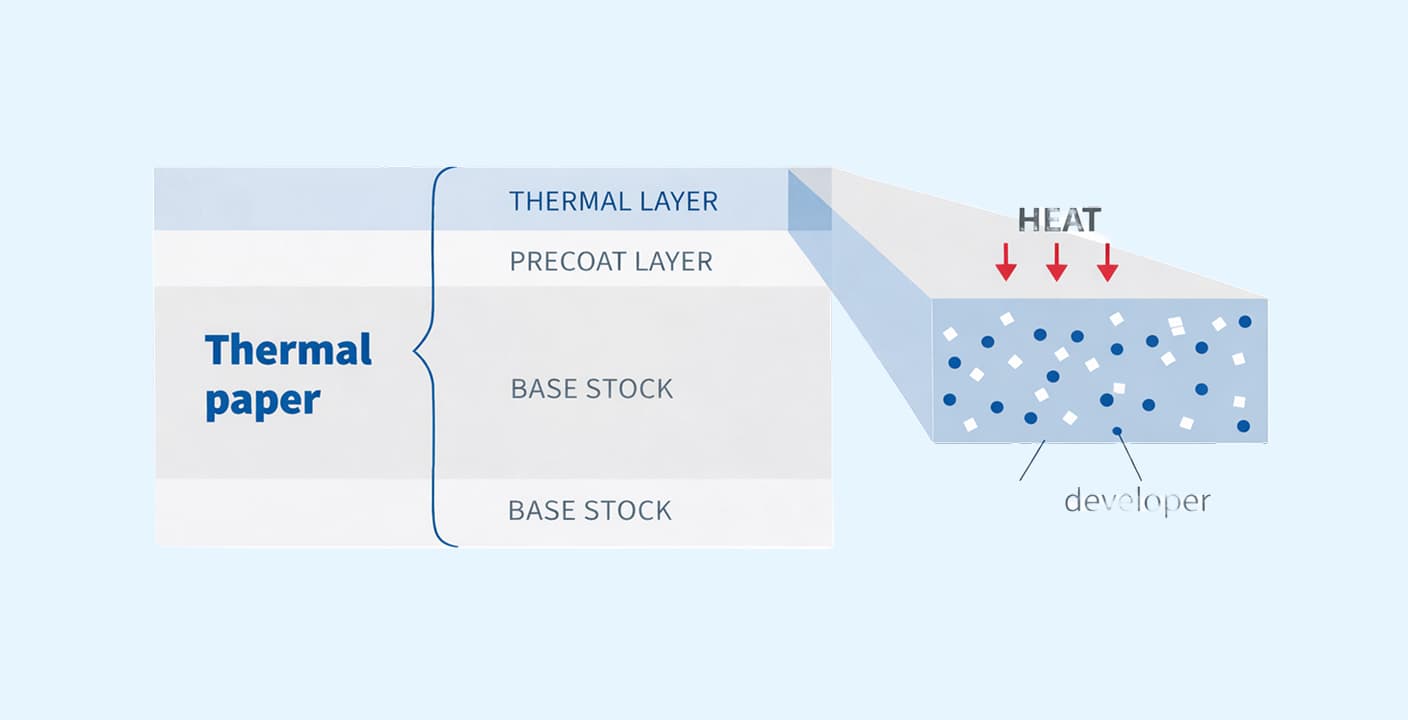
How Does Receipt Paper Work?
Thermal receipt paper doesn't use ink - it relies on a heat-activated chemical reaction. Understanding this process reveals why receipts fade and what health concerns you should know about.