
How to Print a Receipt: A Step-by-Step Guide for Businesses

Reggie Jacobs
Founder of Receipt Maker & Document Management Expert
Choosing the right receipt printer and paper can save you thousands annually. Here's exactly what hardware you need and how to set it up correctly.
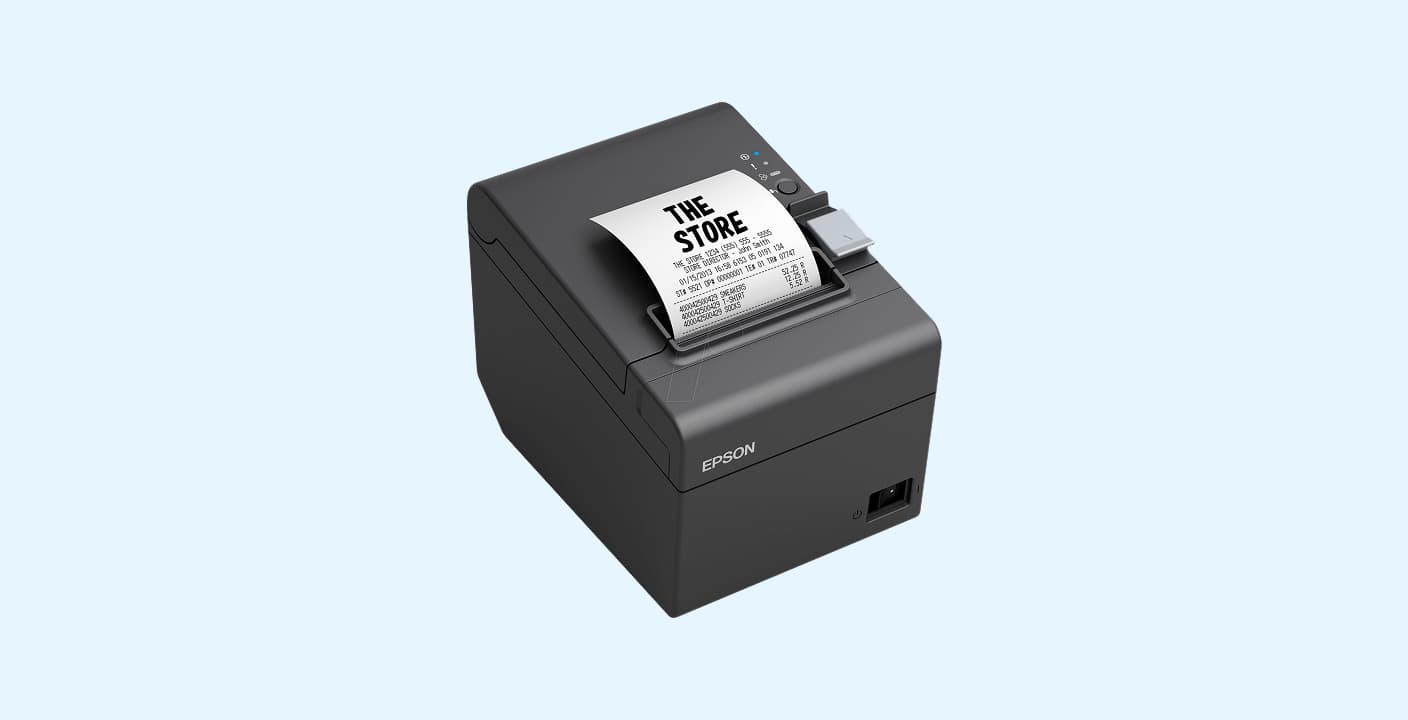
Quick Setup Guide
Two main options for printing receipts:
-
Thermal Printer (for high-volume retail)
- No ink required - uses heat to print on special paper
- Fast, quiet, and low maintenance
- Best for stores printing 10+ receipts daily
-
Standard Laser/Inkjet (for low-volume, service-based businesses)
- Uses regular paper and ink/toner
- Slower but produces archival-quality receipts
- Best for invoicing and B2B transactions
Key requirement: Your POS software must be compatible with your chosen printer model.
Most business owners obsess over their product or their marketing. They spend weeks refining their website or hours perfecting their store layout. When you need a quick receipt for a sale or expense, you can create a receipt online with a free receipt generator.
But they often ignore the very last touchpoint in the customer journey.
The receipt.
It seems trivial. It is just a slip of paper. But when that printer jams, or the text comes out faint, or you simply do not know how to generate one for a client standing in front of you, the friction is real. It makes you look unprofessional and it slows down your operations.
If you are setting up a Point of Sale (POS) system or just trying to figure out how to get a proof of purchase from your screen to a piece of paper, this guide is for you.
We are going to break down the hardware, the paper, and the exact steps to get this right.
The Two Ways to Print Receipts
Before you buy anything or click "print," you need to know what you are actually trying to achieve. There are two distinct categories here.
The "Official" Business Receipt
This is what happens at a coffee shop or a retail store. It requires speed and durability. You usually use a specialized machine called a thermal printer. These do not use ink. They use heat to burn the image onto chemically treated paper.
The Standard Document Receipt
This is for invoices, B2B transactions, or when you are printing a receipt from an online purchase (like Amazon) to keep for your records. You use a standard Laser or Inkjet printer for this.
Can a normal printer print receipts?
Yes. If you are just starting out or run a service-based business sending monthly invoices, a standard A4/Letter printer is fine. You do not need a specialized thermal printer if you print fewer than 10 receipts a day.
However, if you have a physical store, a standard printer is too slow and the paper is too expensive. You need a thermal setup.
Here is a quick breakdown of when to use which:
| Feature | Thermal Printer | Standard (Inkjet/Laser) |
|---|---|---|
| Best For | Retail, Restaurants, High Volume | Invoices, Online Orders, Low Volume |
| Speed | Extremely Fast | Slow |
| Cost Per Receipt | Very Low | High (Ink + Paper) |
| Noise | Quiet | Can be noisy |
| Maintenance | Low (No ink to replace) | High (Ink cartridges) |
Step 1: Choosing the Right Hardware
If you are setting up a shop, you are likely looking for a thermal printer. This is the industry standard for a reason.
How are receipts printed?
In a thermal printer, the print head heats up specific areas of the paper as it passes through. The paper turns black where it is heated. This means you never run out of ink during a rush.
Popular Thermal Printer Brands:
- Epson: The TM-T88 series is the workhorse of the industry.
- Star Micronics: Great for connecting to iPads and Square stands.
- HPRT: Good budget-friendly options.
If you are using a standard printer, any reliable HP or Canon office printer works. Just ensure it is connected to the same network as your computer.
Step 2: Connecting Your Printer
This is where most people get stuck. The days of just plugging in a USB cable and hoping for the best are mostly over, especially with tablet-based POS systems.
For USB Printers (Windows/Mac)
- Plug the printer into the computer.
- Turn the printer on.
- Navigate to Settings > Devices > Printers & Scanners.
- If your computer does not auto-detect it, you may need to download the specific driver from the manufacturer’s website.
For Bluetooth/Wi-Fi Printers (Mobile/Tablets)
This is common for modern setups like Square or Shopify POS.
- Enable Bluetooth on your iPad or Android tablet.
- Put your printer in "pairing mode" (usually by holding the feed button while turning it on).
- Open your POS app settings. Do not just pair it in the iPad settings. Go into the app (e.g., Square), find "Hardware" or "Printers," and connect there.
For a visual guide on setting up a thermal printer, this video is helpful:
Step 3: Configuring the Software
How to make a printed receipt look professional depends on your software settings.
If you are using a standard Word processor or Excel to make a receipt:
- Set your page size to A4 or Letter.
- Ensure you include the date, items purchased, tax amount, and business details.
- Use "Print Preview" to ensure it fits on one page.
If you are using a Thermal Printer:
You cannot send a standard A4 document to a thermal printer. It will come out tiny and unreadable. You must adjust the Paper Size in your printer preferences.
- Go to Printer Properties.
- Select the correct width. The standard is 80mm (3 1/8 inches) or 58mm (2 1/4 inches).
- Set margins to zero to avoid wasting paper.
The Paper Question: What Can You Use?
One of the most frequent questions I see is: Can I use normal A4 paper in a thermal printer?
The answer is no.
Thermal printers do not have ink. They rely on the chemical coating on thermal paper to produce text. If you feed normal A4 paper (cut down to size) into a thermal printer, nothing will print. The page will come out blank.
What paper can I use for a thermal printer?
You must use thermal rolls.
- Size: Check your printer manual. It is usually 80mm or 58mm width.
- Type: Look for "Thermal Paper." Do not buy "Bond Paper" or "Carbonless" unless you have an older impact printer (the kind that uses a ribbon and makes a loud noise).
How to Organize Receipts for Business
Printing the receipt is step one. Managing them is step two.
If you are printing receipts to keep for your own tax records, you need a system immediately. Do not stuff them in a shoebox.
Digital Backup
Even if you print a physical copy, always try to generate a digital version. Most thermal printers and POS systems allow you to "Print to PDF" or email a copy simultaneously.
Physical Storage
If you must keep physical copies (often required for audits), use an accordion folder sorted by month. Remember that thermal paper fades over time. Heat and sunlight will turn the paper black or fade the text.
Pro Tip: If you have a critical thermal receipt, photocopy it or scan it with your phone immediately. The original will fade.
Frequently Asked Questions
How to print a receipt in a printer that is not thermal?
Open your document (PDF, Word, email). Click File > Print. Select your standard inkjet or laser printer. Ensure your paper size matches what is in the tray (usually Letter or A4). This creates a full-page receipt.
What type of printer is used for receipts?
For retail and high-volume environments, a Direct Thermal Printer is used. For kitchens (where heat might turn thermal paper black), Impact Dot Matrix Printers are often used. For home offices, standard Laser Printers are common.
How to make a printed receipt if I don't have a POS system?
You can use free online receipt generators. Search for "free receipt template." Fill in the details, download the PDF, and print it on your standard office printer.
Why is my thermal printer printing blank paper?
You likely put the paper roll in backward. Thermal paper is only coated on one side. Open the printer, flip the roll over, and try again. A simple test is to scratch the paper with your fingernail. If a black mark appears, that is the side that should face the print head.
Related Articles
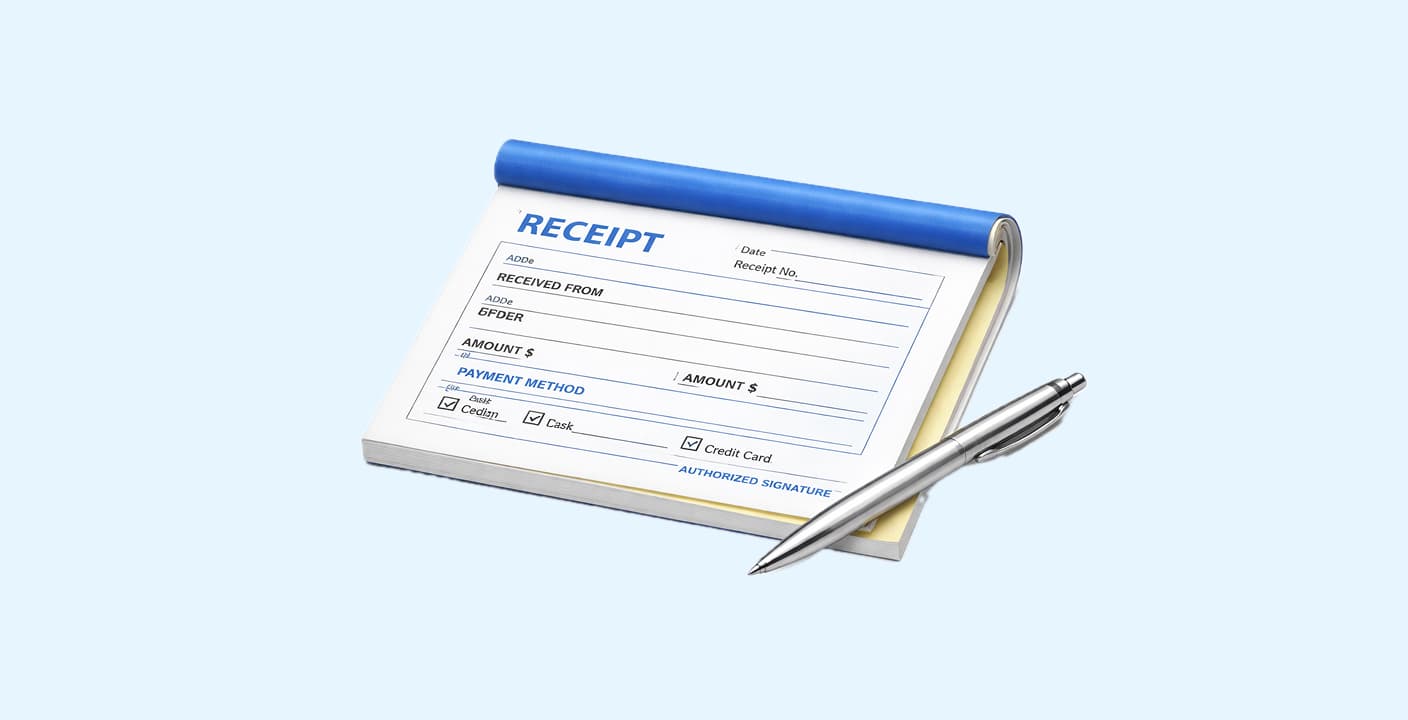
How to Fill Out a Receipt Book (The 1-Minute Guide)
One missing field on a receipt can cost you thousands in a tax audit. Here's the exact 5-step protocol to fill out receipt books correctly every time.
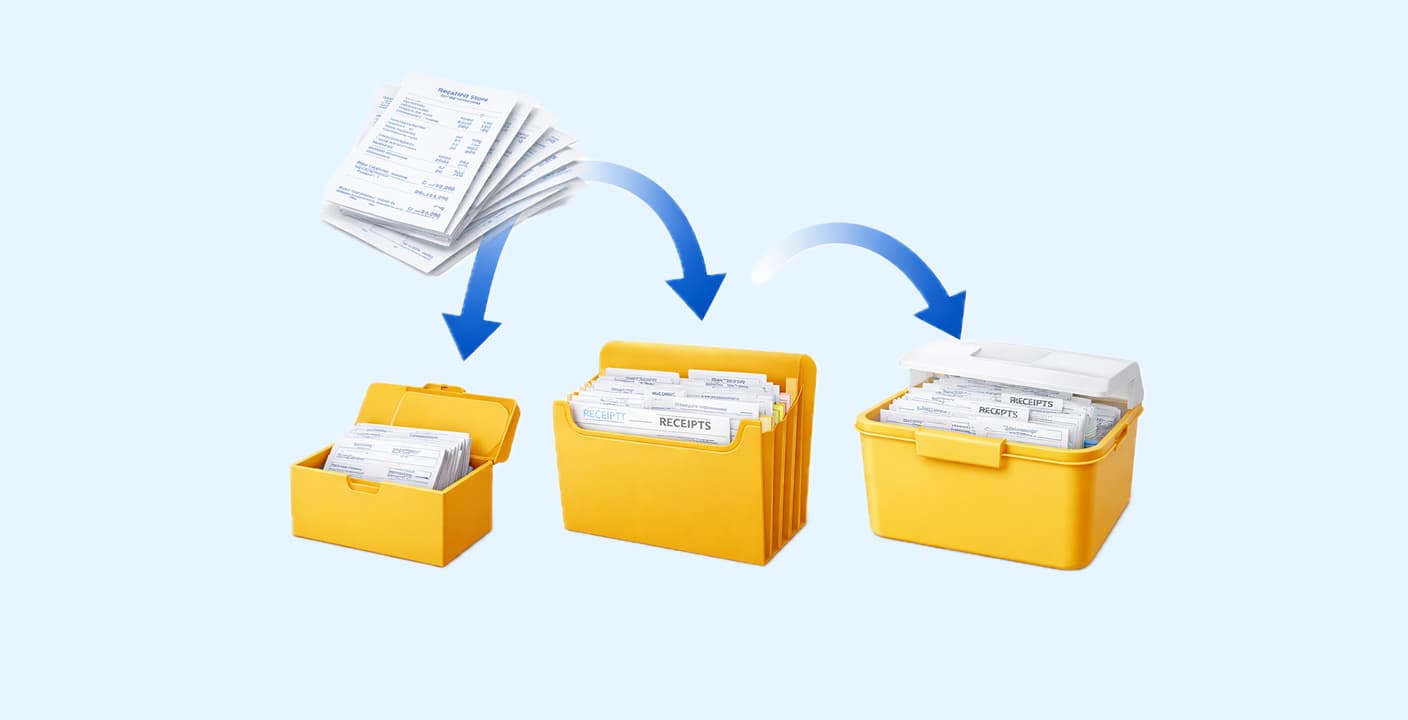
How to Organize Receipts for Business in 2026
A disorganized receipt system costs the average small business owner 40+ hours per year. Here's a proven system you can set up in under an hour.