
How to Organize Receipts for Business in 2026

Reggie Jacobs
Founder of Receipt Maker & Document Management Expert
A disorganized receipt system costs the average small business owner 40+ hours per year. Here's a proven system you can set up in under an hour.
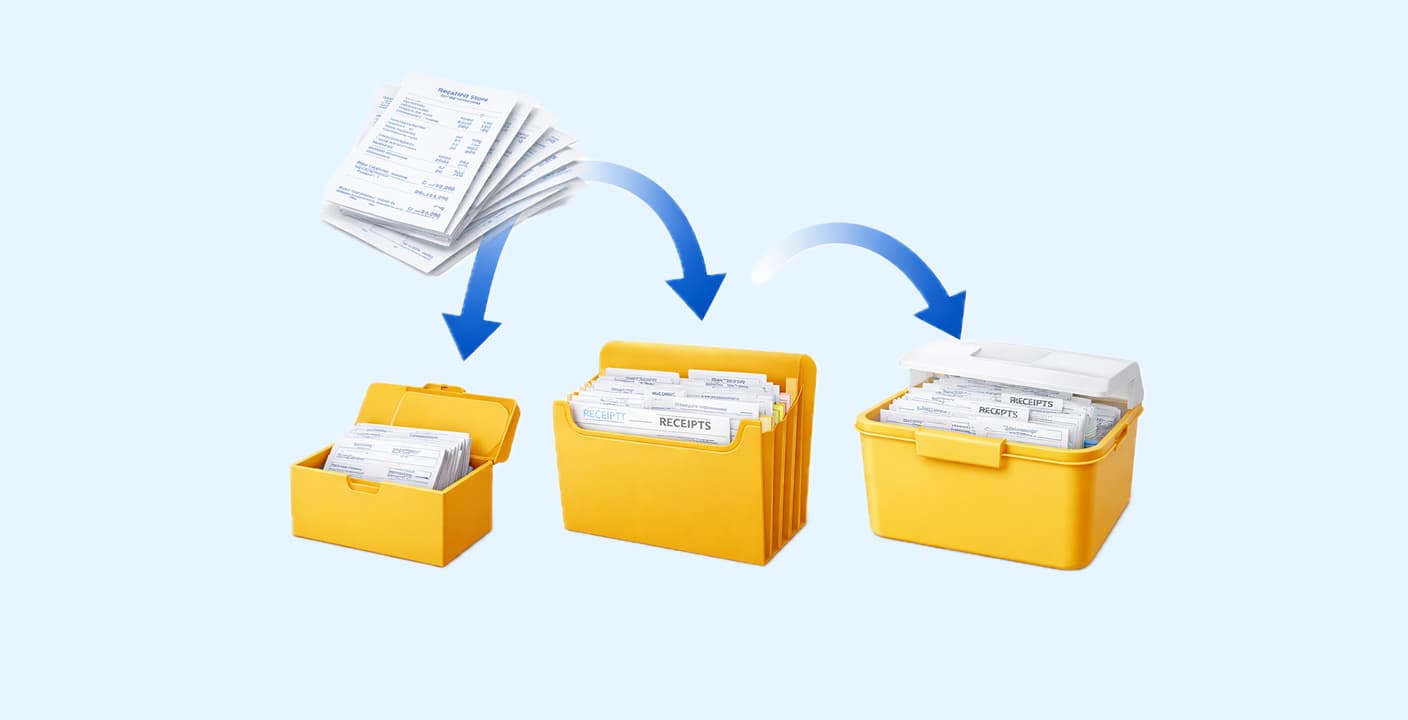
The Complete System
Set up in under 1 hour, maintain in 20 minutes per week:
- Go digital first - scan or photograph every receipt immediately
- Capture instantly - don't wait until later (that's how receipts get lost)
- Categorize consistently - use 5-10 standard categories (Office, Travel, Meals, etc.)
- Name files properly - use format:
YYYY-MM-DD_Vendor_Amount_Category.pdf - Store centrally - use cloud storage (Google Drive, Dropbox) or accounting software
- Sync with accounting - integrate directly with QuickBooks, Xero, or FreshBooks
- Review weekly - spend 15 minutes every Friday to catch missing receipts
IRS requirement: Keep records for 7 years minimum. Digital copies are fully accepted.
How to Organize Receipts for Business in 2026
Organizing business receipts is not complicated, but most people never set up a simple system, which leads to wasted time and unnecessary stress during tax season.
This guide shows a clear, practical way to organize receipts for business so your records stay accurate and easy to manage all year.
If you have ever spent hours digging through email, old folders, and glove compartments trying to find one $47 receipt, this guide is for you. To create or recreate a receipt quickly, use a receipt maker online.
Step-by-Step System to Organize Business Receipts
This system works for freelancers, small businesses, and growing teams. You can set it up in under an hour and maintain it in under twenty minutes a week.
Step 1: Choose Digital First
Your main record should always be digital. Paper is only a temporary input.
If the receipt is physical, scan it with your phone using your accounting app, Google Drive scan, or a receipt app like Expensify.
If the receipt is digital, save the PDF or email receipt immediately to your receipt folder or upload it to your expense software.
Example: You pay for office supplies at Staples. Before leaving the store, open your phone and scan the receipt directly into your “2026 > May > Office” folder.
Step 2: Capture Every Receipt Immediately
Waiting is how receipts get lost.
Capture the receipt the moment the transaction happens. This takes under ten seconds once it becomes habit.
For in-person purchases, scan on the spot.
For online purchases, forward the receipt email to your receipt inbox or upload it directly into your accounting software the same day.
Example: You book a flight. The confirmation email arrives. Forward it to receipts@yourcompany.com or drag it into your “Travel” folder before closing your inbox.
Step 3: Use a Consistent Folder Structure
Use the same structure everywhere: in Google Drive, Dropbox, and your backup.
Main folder: Receipts
Inside:
2026
→ January
→ February
→ March
Inside each month:
- Advertising
- Office
- Software
- Travel
- Meals
- Utilities
- Miscellaneous
Example: A Zoom subscription from March goes into: Receipts > 2026 > March > Software
Do not change this structure halfway through the year. Consistency is what makes the system fast.
Step 4: Name Files So Humans Can Read Them
No matter what software or storage system you use, the file name still matters. Clear names make it easy to search, sort, and understand expenses years later.
When you save or upload a receipt, rename the file before you move on.
Bad: IMG_489302.jpg
Good: 2026-03-11_Zoom_15.99_Software.jpg
You can do this directly when saving the file on your computer, inside Google Drive or Dropbox, or within your accounting software if it allows file renaming. This format lets you instantly understand the expense without opening the file and makes searching during tax time or audits extremely fast.
Step 5: Store Everything in Two Places
Your main storage should be in the cloud. Google Drive, Dropbox, OneDrive, or your accounting platform are all solid choices. If your laptop dies, you do not lose anything because the files already live in the cloud.
The second location is for protection against account lockouts, accidental deletions, or data corruption. This can be an encrypted external hard drive that syncs weekly, or a second cloud account that mirrors your receipt folder.
Example: Your primary receipt system is in Google Drive. Once a week, your entire Receipts folder is backed up to an external encrypted drive or a secondary cloud account.
This setup gives you redundancy without making your system complicated.
Step 6: Reconcile Weekly
Set a recurring 20-minute calendar block, for example every Friday at 4:00 PM.
During that time, upload any missing receipts, match them to your bank and credit card transactions, and fix any incorrect categories.
Example: Open QuickBooks, match the new receipts from this week to transactions, and clean up anything that looks wrong. Then you are done.
This small weekly habit prevents almost all year-end problems and keeps your finances under control with very little effort.
Best Tools to Automate Receipt Organization
| Tool | Best For | Why It Helps |
|---|---|---|
| Expensify | Frequent expenses | Automatically scans receipts and matches them to transactions, reducing manual entry |
| Neat | Long-term storage | Built for storing, categorizing, and retrieving financial documents with strong search |
| QuickBooks | Full bookkeeping | Combines receipt management with full accounting and tax-prep tools |
| Brex | Teams and startups | Automatically captures and categorizes expenses in real time |
Expensify
Expensify is a popular expense management platform used by small businesses and large teams to track spending.
Best for: Frequent expenses
Why it helps: Automatically scans receipts and matches them to transactions, reducing manual entry and errors.
Neat
Neat is a document management company focused on helping businesses digitize and organize financial records.
Best for: Long-term storage
Why it helps: Designed for storing, categorizing, and retrieving receipts and financial documents with strong search capabilities.
QuickBooks
QuickBooks is one of the most widely used small business accounting platforms.
Best for: Full bookkeeping
Why it helps: Combines receipt management with full accounting tools, making expense tracking and tax preparation much easier.
Brex
Brex is a financial platform built for startups and modern teams, offering business accounts and corporate cards.
Best for: Teams and startups
Why it helps: Automatically captures and categorizes expenses in real time, especially useful for fast-moving teams.
Common Mistakes That Break Receipt Systems
Most receipt systems do not fail because they are complicated. They fail because of a few simple habits that slowly create chaos over time.
- Waiting until month-end to scan
- Mixing business and personal receipts
- Not backing up files
- Using inconsistent file names
- Relying on memory
Every broken system fails for these reasons.
How Long Should You Keep Business Receipts?
As a general rule, you should keep most business records for 7 years. This includes tax returns, expense receipts, payroll records, and bank or credit card statements.
For assets such as equipment, vehicles, and computers, keep the purchase records for as long as you own the asset and then for 7 additional years after it is sold or disposed of.
If you are ever audited, you may be asked to provide both proof of purchase and proof of payment. That means having the receipt itself as well as the matching bank or credit card statement available.
Because digital storage is inexpensive and easy to manage, there is little downside to keeping records longer rather than shorter.
Storage is cheap. Peace of mind is priceless.
Optional but Powerful Add-Ons
Link Receipts to Transactions
Most accounting software lets you attach receipts directly to transactions. This makes audits trivial.
Separate Business Finances
Use a dedicated business bank account and business credit card.
This alone cuts your receipt workload in half.
FAQ
Do digital receipts count for taxes?
Yes. The IRS accepts digital copies of receipts as long as they are accurate, readable, and complete. A valid digital receipt should clearly show the vendor name, date of purchase, amount paid, what was purchased, and the payment method. Photos taken with your phone are acceptable if the text is clear and nothing important is cut off. PDF receipts from email confirmations also qualify. Once a digital copy is stored correctly, you do not need the paper version for tax purposes. Many modern businesses operate entirely on digital records and successfully pass audits without maintaining physical receipts.
What is the best way to store receipts long term?
The safest approach is to store receipts in cloud storage and maintain an encrypted backup. Your main system can be a cloud service such as Google Drive, Dropbox, OneDrive, or your accounting software. Your backup should be either an encrypted external hard drive or a second cloud account. This protects your records from computer failure, device loss, accidental deletion, and data corruption. The test is simple. If your laptop disappeared today, your receipts should still exist somewhere else.
Should I keep paper receipts too?
You only need to keep paper receipts until the digital version has been properly saved and verified. Once you have a clear digital copy that is correctly named, stored in the right folder, and backed up, the paper version can be discarded. The main exceptions are major asset purchases, real estate transactions, and long-term legal agreements. For those, keeping both paper and digital copies is a smart move.
How often should I organize receipts?
Weekly is the ideal rhythm. Spending fifteen to twenty minutes each week prevents receipt backlogs, forgotten expenses, misclassified transactions, and year-end stress. Waiting until the end of the month or quarter almost always creates more work and increases the chance of missing documents. Weekly maintenance keeps the entire system running smoothly with minimal effort.
Related Articles
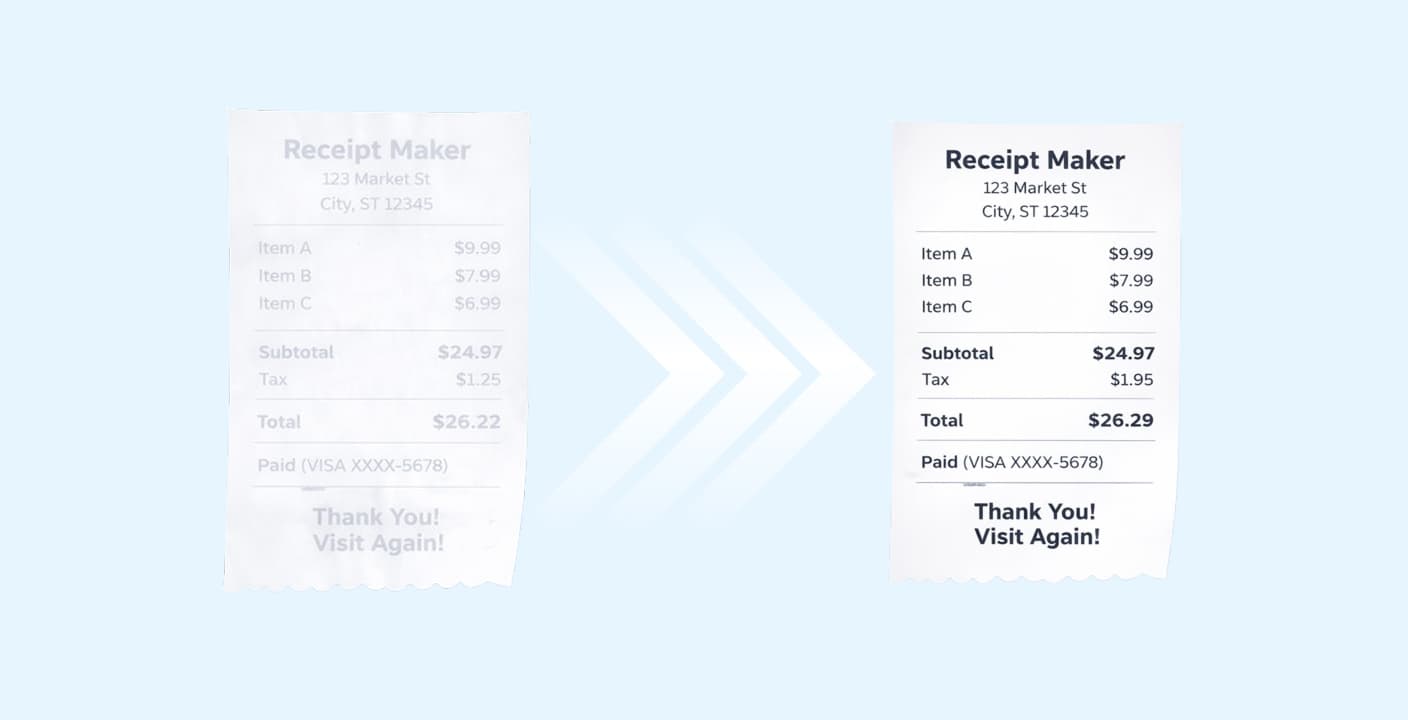
How to Keep Receipts from Fading: A Complete Guide
Thermal receipts can fade completely in months if stored incorrectly. Learn the exact storage conditions and digital backup methods to preserve your receipts for years.
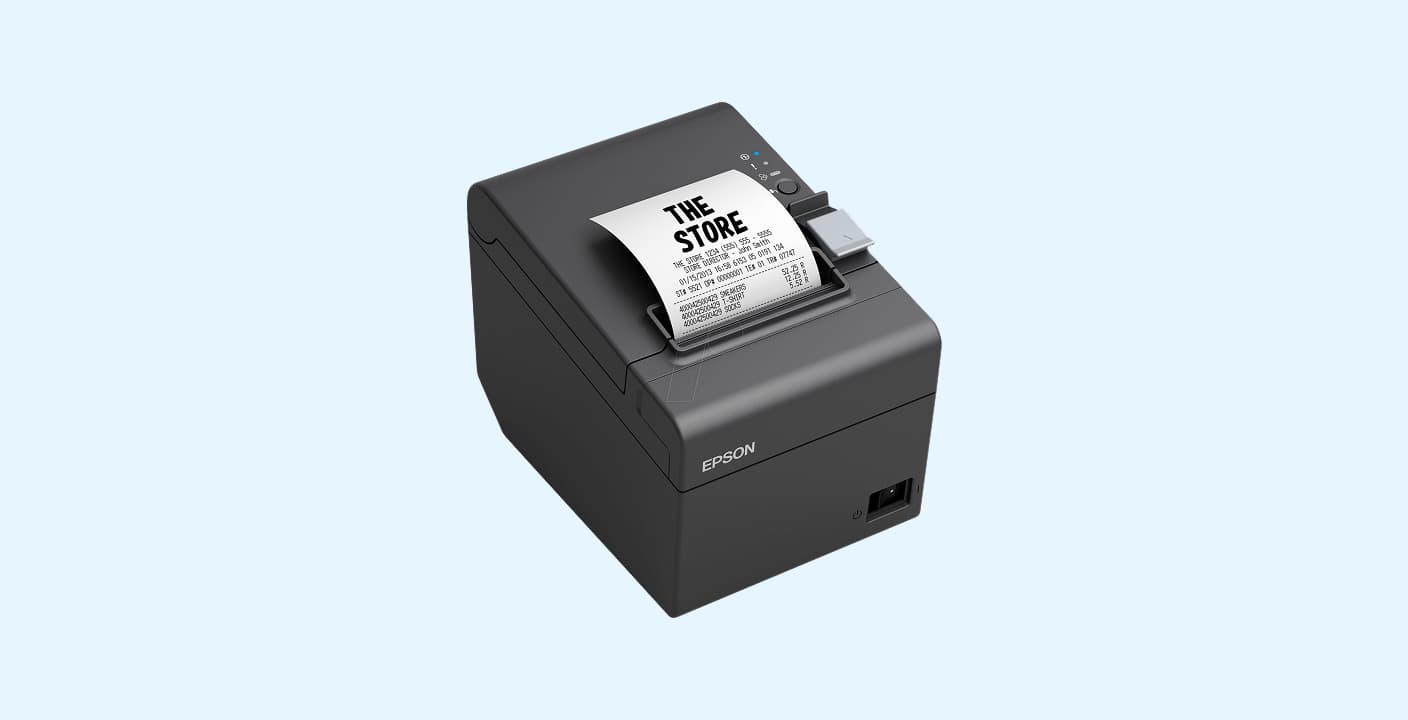
How to Print a Receipt: A Step-by-Step Guide for Businesses
Choosing the right receipt printer and paper can save you thousands annually. Here's exactly what hardware you need and how to set it up correctly.